Category Archives: Linux

Running UltraVNC repeater under Linux server

I am playing with remote support tools. There are a lot of good payed tools like TeamViewer, GoToMeeting and others but they are expensive. I found that UltraVNC has some tools like Single Click which can make it easy to provide remote support to your customers. Finally I ended by ChunkVNC which is basically UltraVNC but looking much more better.
There is a lot of tutorials on the Internet but they describe direct connection support. Which means at least one of the PC’s has to be accessible from the outside world. But I wanted to setup some server which I would connect to instead of connecting directly to customer’s PC. This server is called Repeater. UltraVNC has a repeater targeting Windows platform. But I have a Linux server and I wanted it to be running there. Fortunately a Linux port of the UltraVNC Repeater is also available. I have created a mirror of the latest version in case the original page won’t work.
The installation itself is not a big problem even though you have to compile the sources.

  1. Connect to the server using SSH
  2. Go to temp: cd /tmp/
  3. Download the sources: wget http://downloads.stefko.cz/uvncrepeater.tar.gz
  4. Extract them: tar zxvf  uvncrepeater.tar.gz
  5. Go to the sources directory: cd uvncrepeater/
  6. Compile the sources: make
  7. Copy repeater to sbin: cp repeater /usr/sbin/repeater
  8. Run it: /usr/sbin/repeater

If you want to make it running as a service you can use the following piece of code:

#! /bin/sh
# vnc: start/stop/restart the VNC repeater server
# chkconfig: 3 20 80
# description: VNC repeater server

vnc_start() {
if [ ! -f /etc/uvncrepeater.ini ]; then
echo "File /etc/uvncrepeater.ini does not exist. Aborting."
exit
fi
/usr/sbin/repeater 2>>/var/log/vnc.log &
pgrep repeater >/var/run/vnc.pid
}

vnc_stop() {
killall repeater
rm /var/run/vnc.pid
}

vnc_restart() {
if [ -r /var/run/vnc.pid ]; then
kill `cat /var/run/vnc.pid`
else
echo "Killing repeater in the absence of /var/run/vnc.pid"
killall repeater
fi
sleep 1
vnc_start
}

case "$1" in
'start')
vnc_start
;;
'stop')
vnc_stop
;;
'restart')
vnc_restart
;;
*)
echo "usage $0 start|stop|restart"
esac

Take the code and save it into /etc/init.d/vnc file on the server. Then run the following commands to install it as a service:

  1. chmod +x /etc/init.d/vnc
  2. chkconfig –add vnc
  3. chkconfig –level 3 vnc on

Connection problem when stunnel is run on boot time in Ubuntu

If you are using stunnel in client mode you may experience connection problems when connecting to your stunnel services.
To avoid these problems make the following changes in your stunnel.conf file:

  1. Comment out the following line: chroot = /var/lib/stunnel4/
  2. Update pid file location with this: pid = /var/lib/stunnel4/stunnel4.pid
  3. Add delay = yes into the service configuration

In this case DNS lookup will be done when the service is needed for the first time.

Enabling WMA support under Wine in Linux

I am using foobar2000 as my audio player in Linux, because I am very familiar with it and I was unable to find sufficient alternative. In my music library I also have albums with songs in WMA (Windows Media Audio) format. This format is not supported under Wine by default. But you can fix this very easily by installing Windows Media Player 10.
Windows Media Player itself does not start under Wine, but the codec is installed successfully.

Making FastMail default mail reader in GNOME

In Ubuntu, I am using mail-notification to get notified about new e-mail in my FastMail account. From time to time I also click on some mailto link. In both of these cases I would like a FastMail page to be opened in Opera. But to make it a lil bit smart, I would like to open inbox when double-clicking on new e-mail notification, but in case I click mailto link I would like to be redirected to compose new FastMail e-mail url.
I have created a bash script, which does this job quite well. All you need to do is to copy the following text into clipboard, past it into some text editor and save it into /usr/bin/fastmail-mailto.sh.

#!/bin/sh
BROWSER="opera"

# Mailto URI may look like this
#mailto:[email protected]?subject=hi&body=message

# Most of the parameters are called the same, we just need to parse e-mail
uri=`echo "$1" | sed -e 's/^mailto:/*([^&?]+)[?&]?(.*)$/1&2/'`

if [ "$uri" ];
then exec $BROWSER "http://www.fastmail.fm/action/compose/?to=$uri"
fi

exec $BROWSER "http://www.fastmail.fm/"

After you are finished, you need to make the file executable by calling the following command: sudo chmod a+x /usr/bin/fastmail-mailto.sh.
Finally just go to Preferences > Preferred Applications and change Mail Reader to Custom with the following text: /usr/bin/fastmail-mailto.sh.

Fix SmartSVN to be correctly maximalized on netbooks

On my netbook with 1024×600 resolution, SmartSVN did not allow me to maximize it’s main window. It was just to big to fit the screen. I thought it was caused by width of toolbar buttons, so I removed some of them from toolbar. Unfortunately it did not help.
After some diging on the Internet, I found documentation page on SmartSVN site with description of VM options.
Among other cool options, there is a possibility to remove text from the toolbar buttons using smartsvn.toolbar.textBelowIcon configuration option. By setting this option to false in the ~/.smartsvn/6.6/smartsvn.properties file, I was able to maximize the window correctly.

Replace NotifyOSD with standard Gnome notifications in Ubuntu

If you are using other then one of the black themes in Ubuntu you may find black notifications ugly. I didn’t find a way how to change theme of notifications in Ubuntu 10.04.
Fortunately you can replace default notification system in Ubuntu called NotifyOSD with standard Gnome notification system called notification-daemon.
To use notification-daemon follow these steps:

  1. Open terminal
  2. Execute sudo apt-get install notification-daemon
  3. Execute sudo apt-get purge notify-osd
  4. Restart your computer

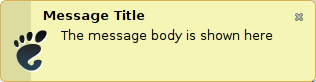
After you restart notifications will probably look like this:

This is Ubuntu theme for notification-daemon. You can change it to normal them by running gconf-editor and going to apps > notification-daemon and changing value of theme to normal. After this change notifications will look similar to this:

Run commands without having to provide sudo password

On my Lenovo S10-3 running Ubuntu 10.04 I was forced to create scripts to control brightness of the display. These scripts are run when brightness keys are pressed. They use /usr/bin/setpci command.
The problem is that calling this command requires administrative privileges. This makes me a lil bit disturbing, because my girlfriend is also working on this machine from time to time, but I don’t want to make her admin.
In Ubuntu sudo is controled by /etc/sudoers file. On the ubuntu documentation you can find a way how to make some commands for some users to be called without having to type password.
The scripts to control brightness can be downloaded here:

Linux music player with multiple artists support

Before I started using Linux at home I had been using Windows for couple of years. The music player I like on that platform most is Windows Media Player. It caused by it’s Contributing artists feature, which allows me to have multiple artists specified in the Artist IDv3 tag. In the music library I can add the Contributing artist view and play all tracks of an artist even those which comes from other albums.
I have been looking for the same functionality in Linux, but has not been successful for some time until I found music player called gmusicbrowser.
Currently it does not support splitting artists using the slash character ‘/’ which is used by Windows Media Player, but it can be easily modified as described by Quentin Sculo.
Edit file /usr/bin/gmusicbrowser using your favorite browser and find a line with the following comment:
#artist splitting
Locate end of the %split declaration and add the following line:
‘/’ => “Windows Media Player splitting”,
After you are finished with the changes, open gmusicbrowser again. Go to Miscellaneous Settings and specify Windows Media Player splitting in the combo. I also changed the layout to quodlibet-like, where the artists tab is easily accessible.