For the past three days I was trying to rescue a damaged disk of my colleague. I already knew about a great disk cloning tool called ddrescue in Linux. So this was the first step I did. After 20 hours of work the clone has been created, but with some errors during read. I was hoping that I will be able to boot from it after I put it back to the PC, but in this case there was some problem with the partition table, so Windows has not been even be able to recognize it as NTFS, even though Linux did!
I didn’t want to reinstall the system after so much hours spend on this, so I was looking for some other tools which could help me save the disk. There was a lot of suggestions on using some paid software, but I don’t have good experience with them.
Finally I found another great open source software called TestDisk. It is a command line tool, but I don’t care much if it helps 🙂 Using this software I was able to recreate the partition table, after it found the lost NTFS partition and as soon as I restarted PC, Windows finally fixed the NTFS using chkdsk.
Running wuala in background with no gui
I have finally found a solution for my problem described in older post. Today I have found out that you can run Wuala without GUI. To do this you have to call wuala with the following parameter.
wuala -nogui
But only this is not enough. You have to also login to your account, because Wuala won’t auto login in this case. I have created a bash script which runs Wuala and as soon as it is initialized it logs you in.
#!/bin/sh

# Run Wuala with no GUI
wuala -nogui &

# Give Wuala some time to initialize
sleep 30

# Login
wuala login USERNAME PASSWORD
Change USERNAME and PASSWORD with your credentials and save this piece of code to /usr/bin/start-wuala.sh. Make it executable by calling sudo a+x /usr/bin/start-wuala.sh. After that you can put it to Startup Applications. But before you do that, you should setup your synchronization, because when Wuala starts in background you are not able to start another instance. To shutdown existing instance go to terminal and execute wuala shutdown.
You can also check status of the background process on the following address: http://127.0.0.1:33333/.
How to disable Cron e-mails in Webmin
Today I have setup some Cron job. The command is running under user nobody. After some minutes while this job has been running and executed I received e-mail with result of the job. This job was setup to run every 3 minutes, so I was getting those e-mails quite often.
After I have logged into Webmin to disable those e-mails I have noticed that there is no option to disable those e-mail notifications. Looks like it depends on the user under which the job is executed if he has some e-mail or not.
Anyway you can disable those e-mails by going to Scheduled Cron Jobs. On the page click on Create a new environment variable button. Select the same user as the one under which the job is running. As Variable name use MAILTO and do not fill anything into the Value field. Also make sure you leave Before all Cron jobs for user selected.
Finally you should not get any new e-mails 🙂
Use Visual Studio shortcuts in Eclipse
I am using Eclipse for PHP development. At work we use Visual Studio, so I am familiar with it’s keyboard shortcuts. In Eclipse I was quite frustrated when I was for example trying to find something in the opened document. Ctrl+F summoned Find dialog as other editors usually does, but pressing F3 to find next match in document did not work. F3 key is used by Open declaration functionality by default.
So I was looking for some way to change the keyboard scheme to look more like other editors. I found a possibility to use Mircosoft Visual Studio scheme. This scheme is available if C++ Development Tools is installed in Eclipse. If you don’t have C++ Development Tools installed in Eclipse you have to install them first. To do that go to Help > Install New Software…
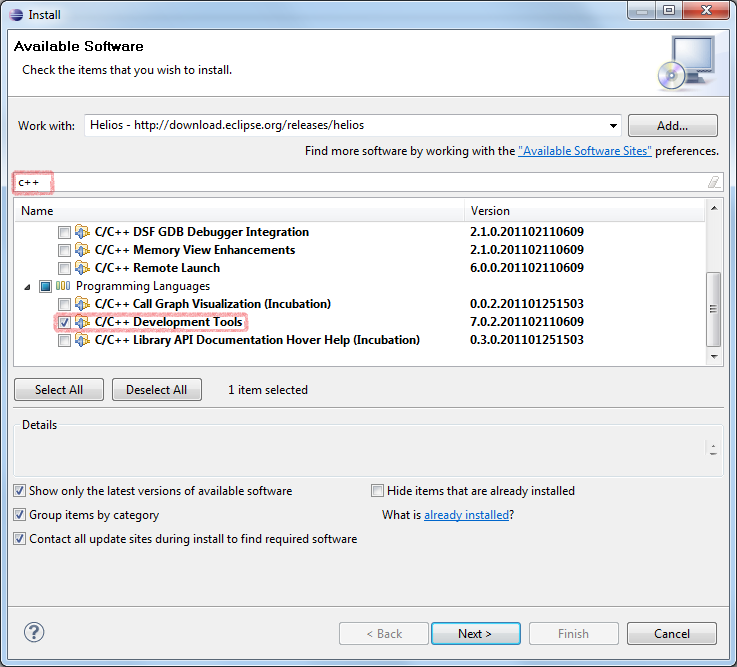
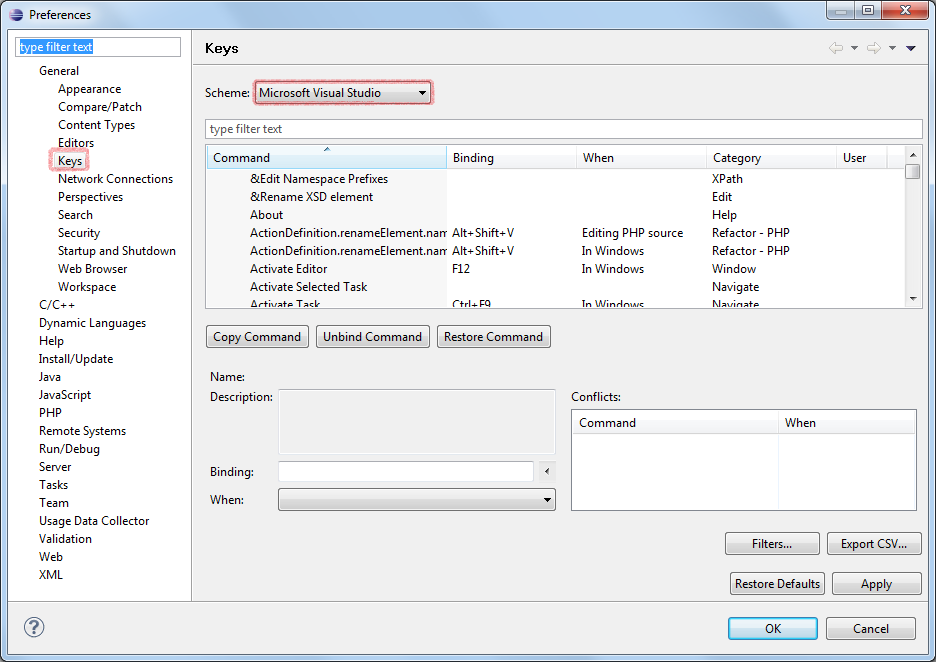
After you finish installation and restart Eclipse IDE go to Windows > Preferences and change scheme on the Keys page to Microsoft Visual Studio.
Outlook integrated CRM free for single-person use
Yesterday we have released new version of our CRM system eWay-CRM free for single-person use. You can obtain it on our download page.
eWay-CRM is CRM system fully integrated into Microsoft Outlook 2003, 2007 and 2010. It works even with 64bit Office systems. All in one installation package!
You can see some basics of work with eWay-CRM in introduction video on youtube. We are planning to publish more learning videos in a few months.
Free version has some small limitations, but you can use it even for commercial use. If you want eWay-CRM for a company to be able to synchronize data between employees you have to purchase the system. Check out full price list for detail information.
Connecting to Microsoft Exchange from Linux
In our company we are all using Microsoft technologies. Working on Windows eight hours a day makes me a little sick, so when I work on PC at home I usually switch to Linux. But from time to time I need to access my work mail. We can use Outlook Web Access (OWA), but I don’t like the interface much.
I was looking for some alternative in Linux. The first I found is that Evolution has some package called evolution-mapi, but I was not able to make it work. It was probably caused by having old version of Evolution.
So I searched further and found a great tool called DavMail. It’s basically a gateway to OWA written in Java. It provides POP3, IMAP, SMTP and LDAP access to your Exchange. You can install it on your client computer and access it only from localhost, so there won’t be any security risks.
Object code signing with StartSSL
I have used code signing to sign our .NET assemblies, but you should be able to use the same steps to sign any dll, exe, cab or msi files.
Before you can start signing you need those prerequisites:
- The actual certificate downloaded from StartSSL.
- OpenSSL binaries for Windows.
- SignTool which is part of Windows SDK.
After you have your object code certificate request approved you can download it from Tool Box > Retrieve Certificate section in you StartSSL account page. Copy the contents in textbox and save it into some file for example cert.pem.
Now we have to convert the certificate into some format which is readable by SignTool. To do this you need file with private key (key.pem) which was used for certificate request.
openssl.exe pkcs12 -export -out cert.pfx -inkey key.pem -in cert.pem
You will have to provide pass phrase used when key.pem has been created and define password for pfx file, which will be used for signing. As soon as pfx file is created you can sign your first assembly.
signtool sign /d "PRODUCT_NAME" /du "PRODUCT_URL" /f cert.pfx /p "PFX_PASSWORD" /t "http://timestamp.verisign.com/scripts/timestamp.dll" /v "FILE_TO_SIGN"
Create m3u playlist in linux using terminal
Today I came across a very little command which will create playlist based on files in current folder. I just had to put it to my blog.
It is very easy. Open terminal. Go to desired directory and execute this:
ls *.mp3 |sort > playlist.m3u
Files are also automatically sorted by name.
bit.ly Sidebar as button in Opera
I have released new little extension for Opera, which will display bit.ly button in the top-right corner of the Opera browser window. Clicking on the button will summon bit.ly Sidebar allowing you easily shorten current page URL or even publish it directly to Twitter and much more.
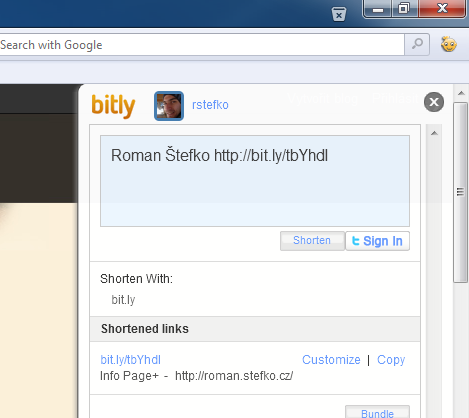
The extension can be downloaded from the Opera extensions page.
Publishing content from Google+ Pages to Facebook, Twitter and other social networks
I have been searching this possibility for a while, but I have not found any easy free solution to allow me do this. The first thing I wanted to do was to publish to Google+ Page using Hootsuite, but I found out that this functionality is available for Enterprise accounts only, which I obviously does not have. I don’t even really want this highly priced account, because I would not found any use for that.
So the second thing I thought about was getting data from Google+ Page. Again I was not really successful. There were some tools which should transform Google+ Page to RSS feed, but they did not work, because of some changes made by Google or something.
Since Google+ API is already accessible for some time I wondered if I could write some little service which would make a RSS feed for my Google+ Page. After some hours of work I came out with the first version. I called the service Google+ RSS.
As I said I use Google+ API to access the data and because Google has some quotas to access it’s API you have to create your own API key to use Google+ RSS. So here is a How to guide to get desired RSS feed.
First of all you have to create new project using Google+ API. Go to Google APIs console and from the drop down on the left side of the page create new project. You can use whatever project name you want. I created this service because I wanted to access data for Necronomicon magazine, so I called the project Necronomicon Google+ RSS. After you click OK you should be redirected to API Access page and you should see you new API key there.
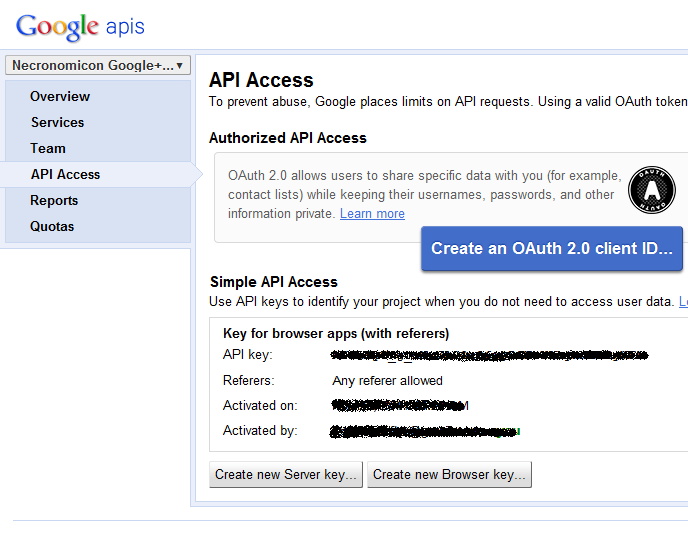
Also make sure that Google+ API is turned ON in the Services page.

Now you have the API key. That was the harder part. The second thing you have to know is Google+ profile id of your page or some other public profile. To get this go to your Google+ Page and look at the numeric part of the URL.

Thats it! Now you have all data you need to generate your Google+ RSS feed. Go too the Google+ RSS service and put API key and Google+ profile id there.
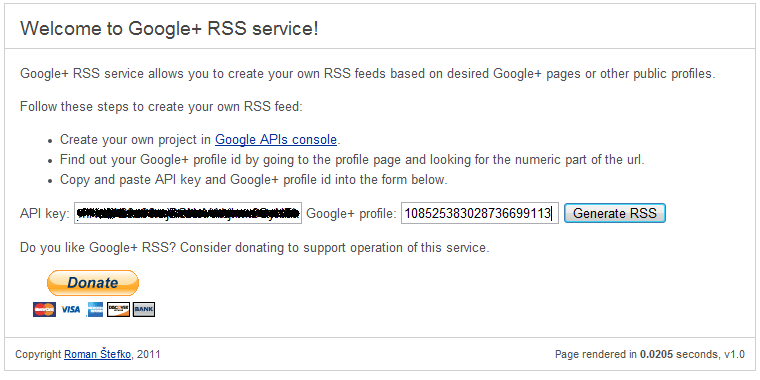
Click on the Generate RSS button. You should be redirected to the final RSS feed page. Save this URL somewhere. You can use it in any RSS client.
It’s good we can get data from Google+ page in some generic format, but we want to send them to Facebook and Twitter or others.
To accomplish this I use RSS Graffiti for Facebook and twitterfeed.com for Twitter. Those services will check your generated RSS feed in specified interval and post data to your Facebook wall or Twitter.
Note that there is access limit on Google+ RSS. You can access your generated RSS page 3 times in 30 minutes. So just have it on mind when testing. Otherwise you will have to wait 30 minutes when you reach this limit.