| Shortcut | Action |
|---|---|
Ins / Alt + T | Mark / Unmark files |
Alt + (+) | Select files |
Alt + Enter | Copy the name of a (selected) file to the command line |
Alt + S | Search |
Ctrl + O | Show console |
F9 | Go to menu |
See man pages for more info.
| Shortcut | Action |
|---|---|
Ins / Alt + T | Mark / Unmark files |
Alt + (+) | Select files |
Alt + Enter | Copy the name of a (selected) file to the command line |
Alt + S | Search |
Ctrl + O | Show console |
F9 | Go to menu |
See man pages for more info.
# Config username and email
git config --global user.name jdoe
git config --global user.email [email protected]

# To avoid detected dubious ownership warning
git config --global --add safe.directory "*"git init # Create a new Git repository
git clone <url> # Clone an existing repositorygit status # Show the working directory status
git add -A # Stage all changes
git add <file> # Stage a specific file
git reset # Unstage all files (keep changes)
git reset <file> # Unstage a specific file
git mv <source> <dest> # Rename file
git checkout -- <file> # Revert local file changes# Revert changes on single file to previous commit
git checkout <commit-hash> <file>
# Revert changes made by specified commit
git revert <commit-hash>git commit -m "Message" # Commit with a message
git log # View commit history
git log --oneline # Compact log view
git log -3 --name-status # Last 3 changes with file names
git log --follow -p -- <file> # Follow file history# Blame from line X to Y
git blame -L X,Y <file>
# Show changes on a file from a specified commit
git show <commit-hash> -- <file>git push origin <branch> # Push changes to the remote branch
git push origin -u <branch> # Push new branch
git pull # Fetch and merge changes from remote
git fetch --all # Fetch all from remote# Delete branch from remote
git push origin --delete <branch># Patch from uncommitted changes
git diff > changes.patch
# Patch from changes between two commits
git diff commit1 commit2 > changes.patchgit branch # List all branches
git branch <name> # Create a new branch
git branch -d <name> # Delete a branch
git checkout <branch> # Switch to a branch
git checkout -b <name> # Create and switch to a new branch
git merge <branch> # Merge a branch into the current onegit tag <name> # Create new tag
git push origin --tags # Push tags to remote# Tag with current date / time
git tag PUB_$(date -Format 'yyMMdd')
git tag PUB_$(date -Format 'yyMMdd-HHmm')git restore <file> # Discard changes in a file
git reset --hard # Discard all uncommitted changesgit remote -v # Show remote repositories
git remote add origin <url> # Add a remote repository
git remote rm origin # Remove a remote repositorylibdbus-glib-1.so.2: cannot open shared object file: No such file or directory
Couldn't load XPCOM.A library dbus-glib is missing and needs to be installed:
sudo pacman -S dbus-glibI was trying to setup .sql file association working for our lightweight SQL editor, but it took me more time than expected. Below are steps that I applied to make it work:
The last step was probably the biggest problem from the start, so I am not sure all of the other steps are required. I enabled ClickOnce logging and found out there is a warning regarding the extension.
File association for ".sql" skipped, since another application is using it.I had to remove association information from registry (HKEY_CURRENT_USER\Software\Microsoft\Windows\CurrentVersion\Explorer\FileExts\.sql) and restart!
There is a lot of services that will print public IP like ipgive.me. Using curl or wget you can easily print your current public IP on the terminal.
curl ipgive.me
wget -q -O- ipgive.meIt cannot be done directly from Synapse settings, but you can do it manually by editing Synapse configuration.
{
  "ui" : {
    "shortcuts" : {
      "activate" : "Super_L",
      ...
    }
  }
}
There is a disadvantage of this solution. You basically can’t use any other global key combinations with Win key, because it will always trigger Synapse.
If that is a problem you can use xcape to assign an additional one-click function to a modifier key.
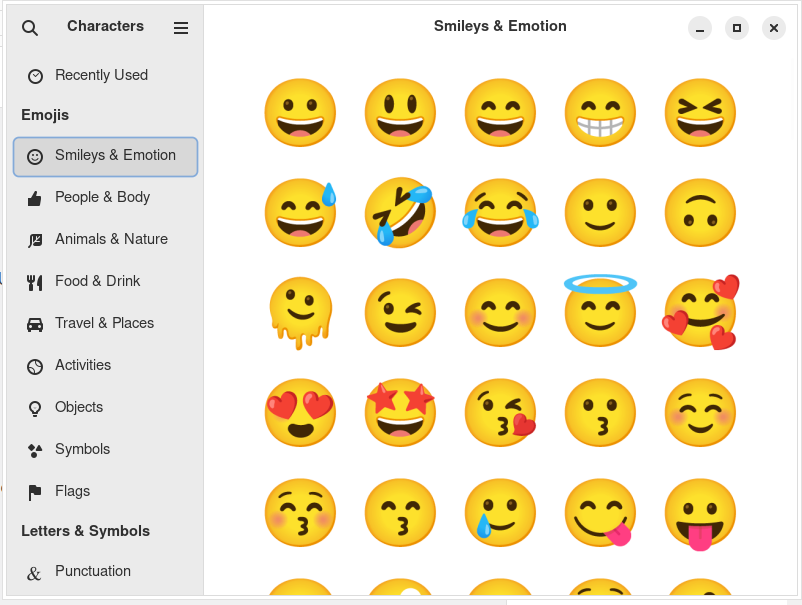
xcape -e 'Super_L=Super_L|space'There is a handy feature in Windows, when you type Win+. a selector for Emoji and other Unicode characters will appear.
You can install a similar app in Arch Linux using gnome-characters package.
sudo pacman -S gnome-charactersNow you can mimic the Windows feature and assign a global hotkey for Win+. to execute gnome-characters.
Using xinit you can start applications without even starting a window manager. There is a sample in Arch Linxux wiki, but you may notice that Chromium does not fill full screen.
With the example below a specific site is started in kiosk mode taking whole screen. Change the size based on your display.
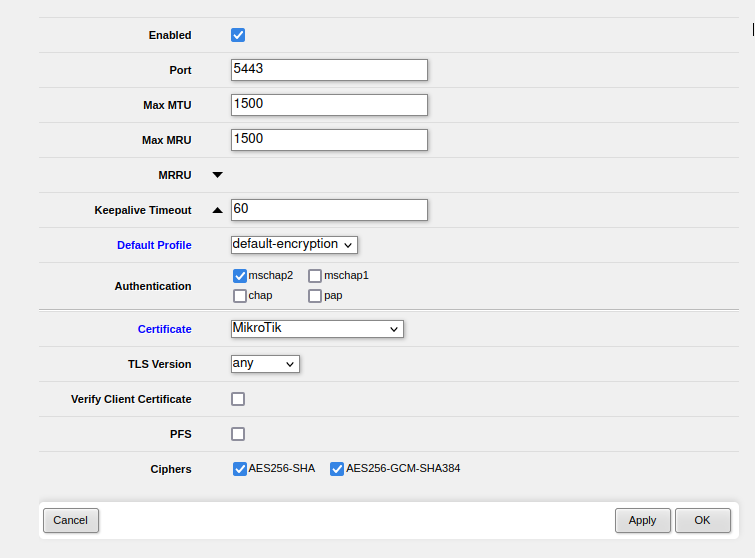
exec chromium --app=https://example.com --kiosk --window-position=0,0 --window-size=1366,768Android 12 dropped support for L2TP. If you are looking for alternative and OpenVPN is not possible, because it’s setup in TAP mode, which is not supported on Android nor iPhone, you may try SSTP instead. SSTP (Secure Socket Tunneling Protocol) is protocol developed by Microsoft.
There is a open source client Open SSTP available Google Play. However MikroTik’s PAP implementation does not seem to work, so your only option is to use MS-CHAPv2, but it is more secure anyway!
The drivers seems to no longer be available on the C-TECH website.
You can download them below.