Download Ventoy from Github and extract it.
Install Ventoy to USB: sudo ./Ventoy2Disk.sh -i /dev/sdX
Copy Windows installation ISO to USB: cp Win11.iso /run/media/$USER/Ventoy/
Download Ventoy from Github and extract it.
Install Ventoy to USB: sudo ./Ventoy2Disk.sh -i /dev/sdX
Copy Windows installation ISO to USB: cp Win11.iso /run/media/$USER/Ventoy/
The following script replaces repository URLs to allow installation of apps on this legacy Debian version.
sed -i \
    -e 's|deb.debian.org/debian-security|archive.debian.org/debian-security|g' \
    -e 's|deb.debian.org/debian|archive.debian.org/debian|g' \
/etc/apt/sources.listFirst you need to compute hash of your e-mail.
echo -n "[email protected]" | sha256sumThan you can download it using curl. Replace HASH with the output from the previous command.
curl -fL "https://www.gravatar.com/avatar/HASH?s=500&d=404" -o avatar.jpgs=500 (Gravatar supports 1–2048px size)d=404 (If there is no image return HTTP 404)r=pg|r|x (To change rating)See more information on Gravatar docs.
Neofetch is no longer supported, but there is actively maintened alternative called fastfetch for fetching system information and displaying it in a visually appealing way.
sudo pacman -S fastfetch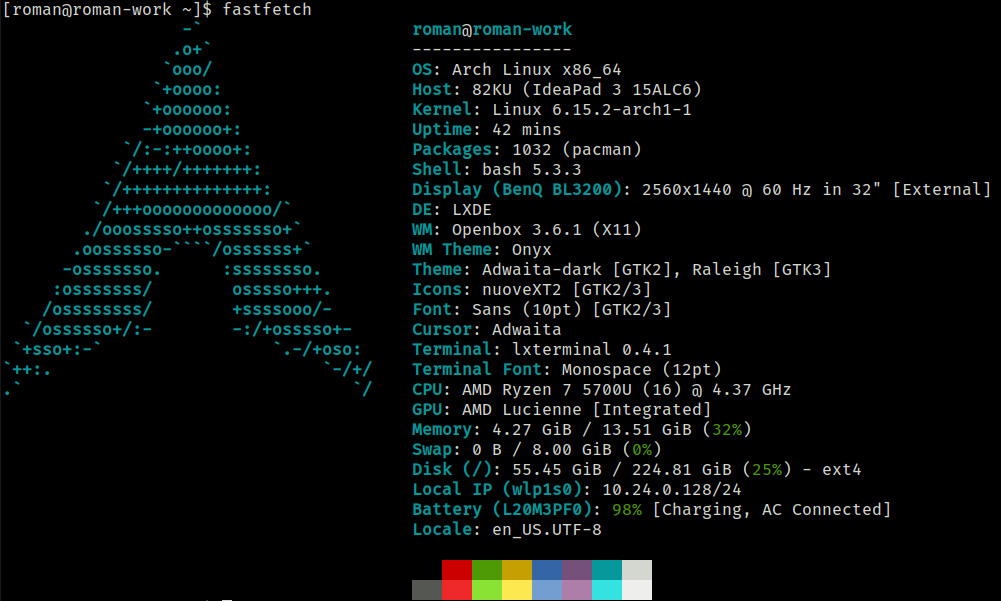
Using find and sed a text in multiple files can be replaced using a one liner. If you have GIT bash you can do it in Windows too.
In the example below address of old.server.com will be replaced with new.server.com in all Web.config files.
find /c/inetpub/wwwroot -name "Web.config" -exec sed -i 's/old.server.com/new.server.com/g' {} +I use those steps on LXC virtual in Proxmox:
apt update && apt upgrade sed -i'.bak' 's/bullseye/bookworm/g' /etc/apt/sources.list/etc/apt/sources.list.d/ appropriatelyapt updateapt upgrade --without-new-pkgsapt full-upgraderebootSee detailed instructions here.
Even on MacOS Sequoia ssh does not support FIDO2. You need to install openssh using brew, otherwise you may get error Cannot download keys without provider when you try to import resident keys from Yubikey using ssh-keygen -K.
After you install openssh brew install openssh, restart terminal and make sure which ssh displays /opt/homebrew/bin/ssh.
Another problem that you may face, which is not related to MacOS is error Provider "internal" returned failure -1. The problem is that you may generate SSH key on Yubikey without FIDO PIN. But if you do not set FIDO PIN, you cannot import the key. Fortunately you can set the PIN later.
ykman fido access change-pinThis guide is meant for those who need to work in Windows from time-to-time and would like to have linux feeling.
In Altap Salamander go to Configuration -> Editors.
| Command | "C:\Program Files\Git\bin\bash.exe" |
| Arguments | --login -i -c 'nano "$(Name)"' |
| Initial Directory | $(FullPath) |
--login -i is used to start interactive shell.
-c starts a command (nano …)
| Command | Description |
|---|---|
nmcli | Show general help |
nmcli general status | Show overall NetworkManager status |
nmcli general hostname | View or set system hostname |
nmcli radio all | Show Wi-Fi and Bluetooth state |
nmcli networking on/off | Enable or disable all networking |
nmcli connection show | List saved connections |
nmcli device status | Show status of all devices |
| Command | Description |
|---|---|
nmcli device | List all devices |
nmcli device show | Show detailed info for all devices |
nmcli device disconnect <device> | Disconnect a specific device (e.g. wlan0) |
nmcli device connect <device> | Connect a specific device |
| Command | Description |
|---|---|
nmcli device wifi list | List available Wi-Fi networks |
nmcli device wifi connect <SSID> password <password> | Connect to a Wi-Fi network |
nmcli device wifi connect <SSID> --ask | Connect to a Wi-Fi network and ask for password |
nmcli connection show --active | Show active connections |
nmcli connection up <name> | Activate a connection |
nmcli connection down <name> | Deactivate a connection |
| Command | Description |
|---|---|
nmcli connection add type ethernet ifname eth0 con-name home | Add new Ethernet connection |
nmcli connection modify <name> | Modify connection settings |
nmcli connection delete <name> | Delete a saved connection |
nmcli connection clone <name> <new_name> | Clone a connection profile |
| Command | Description |
|---|---|
nmcli connection reload | Reload all connection profiles |
nmcli networking off && nmcli networking on | Restart networking |
nmcli --ask | Prompt for password or secrets interactively |
powercfg /hibernate offpowercfg /availablesleepstatespowercfg /lastwakepowercfg /requests
# Ignore driver
powercfg /requestsoverride DRIVER "Realtek High Definition Audio" System
# View ignored drivers
powercfg /requestsoverride