Download Ventoy from Github and extract it.
Install Ventoy to USB: sudo ./Ventoy2Disk.sh -i /dev/sdX
Copy Windows installation ISO to USB: cp Win11.iso /run/media/$USER/Ventoy/
Download Ventoy from Github and extract it.
Install Ventoy to USB: sudo ./Ventoy2Disk.sh -i /dev/sdX
Copy Windows installation ISO to USB: cp Win11.iso /run/media/$USER/Ventoy/
Neofetch is no longer supported, but there is actively maintened alternative called fastfetch for fetching system information and displaying it in a visually appealing way.
sudo pacman -S fastfetch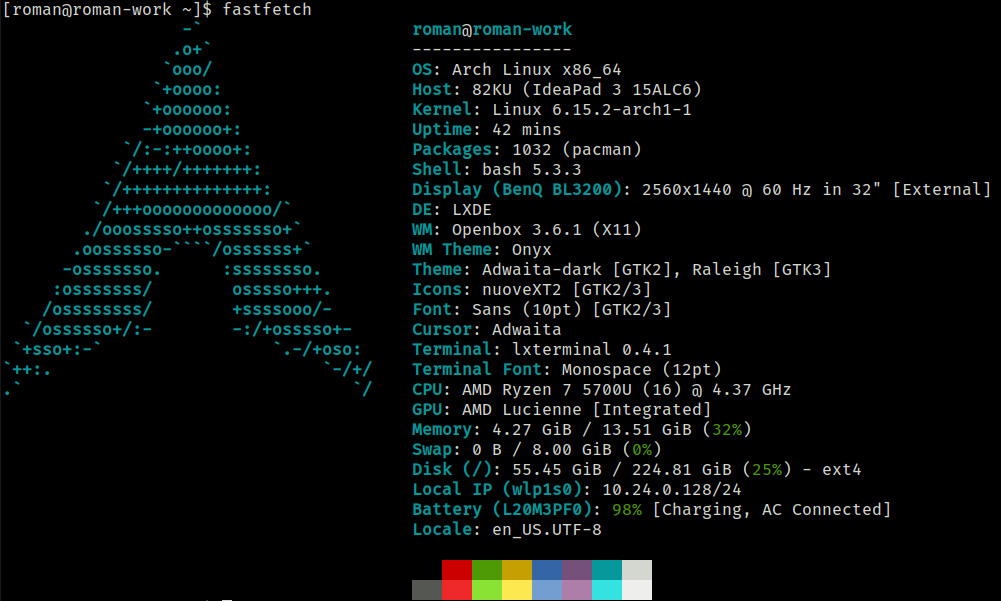
libdbus-glib-1.so.2: cannot open shared object file: No such file or directory
Couldn't load XPCOM.
A library dbus-glib is missing and needs to be installed:
sudo pacman -S dbus-glibIt cannot be done directly from Synapse settings, but you can do it manually by editing Synapse configuration.
{
  "ui" : {
    "shortcuts" : {
      "activate" : "Super_L",
      ...
    }
  }
}
There is a disadvantage of this solution. You basically can’t use any other global key combinations with Win key, because it will always trigger Synapse.
If that is a problem you can use xcape to assign an additional one-click function to a modifier key.
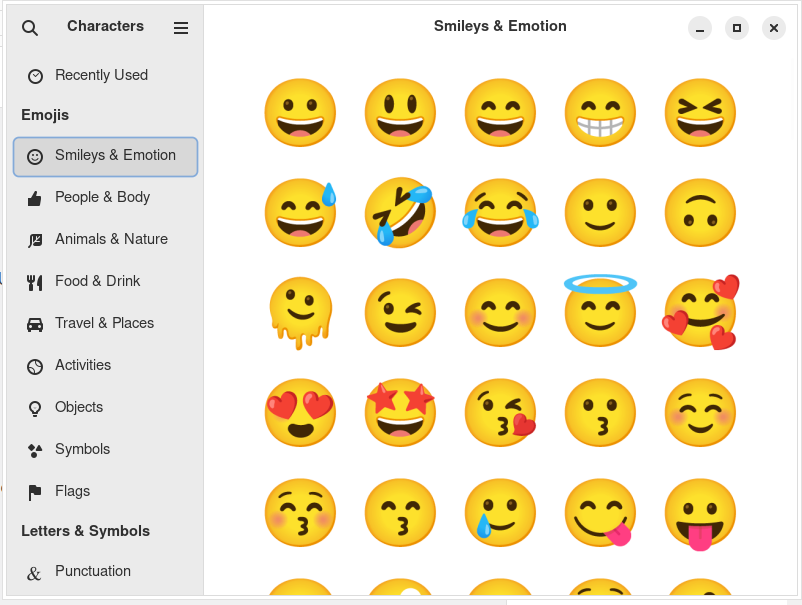
xcape -e 'Super_L=Super_L|space'There is a handy feature in Windows, when you type Win+. a selector for Emoji and other Unicode characters will appear.
You can install a similar app in Arch Linux using gnome-characters package.
sudo pacman -S gnome-charactersNow you can mimic the Windows feature and assign a global hotkey for Win+. to execute gnome-characters.
Using xinit you can start applications without even starting a window manager. There is a sample in Arch Linxux wiki, but you may notice that Chromium does not fill full screen.
With the example below a specific site is started in kiosk mode taking whole screen. Change the size based on your display.
exec chromium --app=https://example.com --kiosk --window-position=0,0 --window-size=1366,768Let’s say you have a repository structure like below (eg. because previously it was SVN repository where everything was on one place).
Now you would like to move example.com to separate git repository.
First of all, you need to install git-filter-repo.
# Clone old repository to new directory
git clone OLD_REPOSITORY example.com
cd example.com/

# Remove everything else except example.com directory
git filter-repo --path example.com/

# Make example.com new root directory
git filter-repo --subdirectory-filter example.com

# Push to a new repository
git remote add origin NEW_REPOSITORY
git push -u origin masterInsert SD card to your system.
sudo fdisk -l
sudo fdisk /dev/sdX
Create partitions.
sudo mkfs.vfat /dev/sdX1
sudo mkfs.ext4 /dev/sdX2
Mount new partitions.
sudo mkdir /mnt/boot/
sudo mkdir /mnt/root/

sudo mount /dev/sdx1 /mnt/boot/
sudo mount /dev/sdx2 /mnt/root/
Download and install Arch Linux ARM.
wget http://os.archlinuxarm.org/os/ArchLinuxARM-rpi-aarch64-latest.tar.gz
sudo su
tar zxvf ArchLinuxARM-rpi-aarch64-latest.tar.gz -C /mnt/root
mv /mnt/root/boot/* /mnt/boot
sync
umount /mnt/boot/
umount /mnt/root/
Remove SD card, insert it into Raspberry PI and boot it to complete the installation.
pacman-key --init
pacman-key --populate archlinuxarm
pacman -SyuInstall autorandr.
sudo pacman -S autorandrSave current configuration. If you are on notebook you can eg. call it mobile.
autorandr --save mobileNow connect you external monitor. Change the monitor settings as you wish and save it.
autorandr --save dockedFrom now on, when you connect external monitor it will automatically switch to it. If you disconnect it it will revert back internal monitor only.
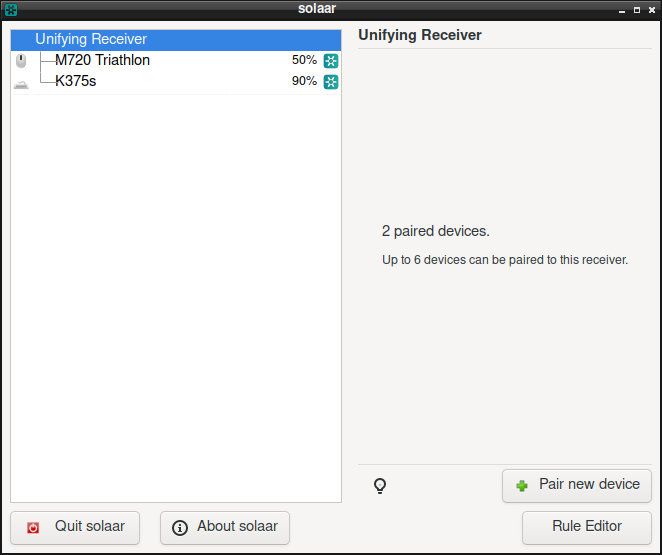
sudo pacman -S solaar
sudo groupadd plugdev
sudo usermod -a -G plugdev your_username