Category Archives: Linux

Edit files in Altap Salamander using nano

This guide is meant for those who need to work in Windows from time-to-time and would like to have linux feeling.

Prerequisites

In Altap Salamander go to Configuration -> Editors.

Command"C:\Program Files\Git\bin\bash.exe"
Arguments--login -i -c 'nano "$(Name)"'
Initial Directory$(FullPath)

Remarks

--login -i is used to start interactive shell.

-c starts a command (nano …)
nmcli

Basic Commands

CommandDescription
nmcliShow general help
nmcli general statusShow overall NetworkManager status
nmcli general hostnameView or set system hostname
nmcli radio allShow Wi-Fi and Bluetooth state
nmcli networking on/offEnable or disable all networking
nmcli connection showList saved connections
nmcli device statusShow status of all devices

Device Management

CommandDescription
nmcli deviceList all devices
nmcli device showShow detailed info for all devices
nmcli device disconnect <device>Disconnect a specific device (e.g. wlan0)
nmcli device connect <device>Connect a specific device

Wi-Fi

CommandDescription
nmcli device wifi listList available Wi-Fi networks
nmcli device wifi connect <SSID> password <password>Connect to a Wi-Fi network
nmcli device wifi connect <SSID> --askConnect to a Wi-Fi network and ask for password
nmcli connection show --activeShow active connections
nmcli connection up <name>Activate a connection
nmcli connection down <name>Deactivate a connection

Connections (Profiles)

CommandDescription
nmcli connection add type ethernet ifname eth0 con-name homeAdd new Ethernet connection
nmcli connection modify <name>Modify connection settings
nmcli connection delete <name>Delete a saved connection
nmcli connection clone <name> <new_name>Clone a connection profile

Reset and Troubleshooting

CommandDescription
nmcli connection reloadReload all connection profiles
nmcli networking off && nmcli networking onRestart networking
nmcli --askPrompt for password or secrets interactively

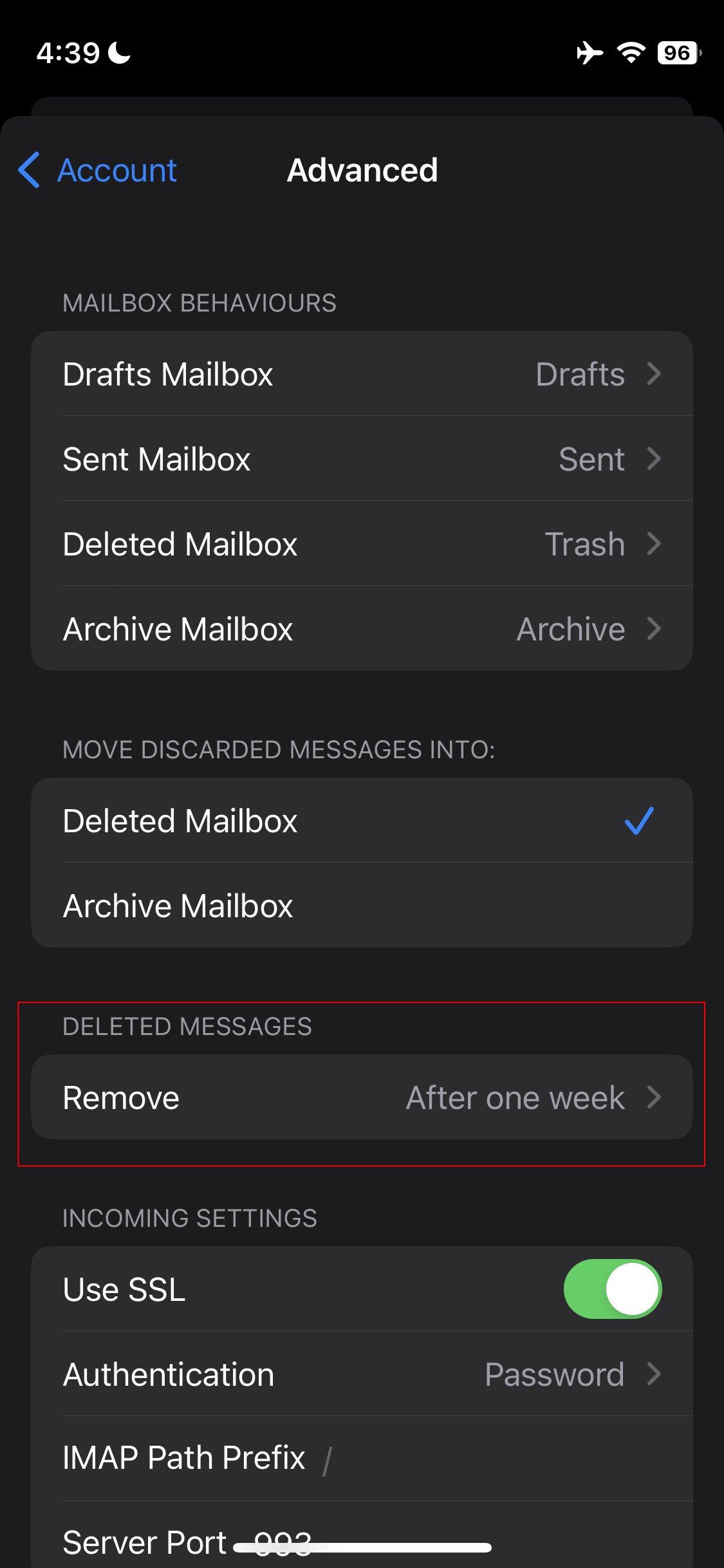
Wondering why messages are deleted from your trash after a week?

I had a special script that removes e-mail from Trash after 90 days. But one day I was looking for a message older than 7 days and realized that older messages are no longer in trash!

I checked Roundcube settings, but it does not have such option. There is only an option to delete all messages from after logout.

Auto expunge can be configured in dovecot, but there was not such configuration:

doveconf | grep expunge

People on the internet were pointing to mail clients like Thunderbird. After some more digging I found out the iPhone by default has such setting! OMG!!!

You need to go to your mail account advanced settings on your iPhone.

Lock Screen and Hibernate in Ubuntu 22.04

In Ubuntu you can hibernate your PC by using the following command:

sudo systemctl hibernate

The problem is it does not automatically lock the screen. To lock the screen use:

xdg-screensaver lock

Now we can combine it together:

xdg-screensaver lock && systemctl hibernate

Note that you will need to enable your user to execute systemctl hibernate without sudo. You can do it by editing /etc/sudoers. Just add:

your-username ALL= NOPASSWD: /usr/bin/systemctl hibernate

OpenOffice service init.d script for CentOS

This script will start soffice headless listening on port 8100. You can use it eg. with JODConverter.

#!/bin/bash
# openoffice.org headless server script
#
# chkconfig: 2345 80 30
# description: headless openoffice server script
# processname: openoffice
#
OOo_HOME=/usr/bin
SOFFICE_PATH=$OOo_HOME/soffice
PIDFILE=/var/run/openoffice-server.pid

set -e

case "$1" in
start)
if [ -f $PIDFILE ]; then
echo "OpenOffice headless server has already started."
sleep 5
exit
fi
echo "Starting OpenOffice headless server"
$SOFFICE_PATH -nologo -nodefault -norestore -nocrashreport -nolockcheck -headless -nofirststartwizard -accept="socket,host=localhost,port=8100;urp" & > /dev/null 2>&1
touch $PIDFILE
;;
stop)
if [ -f $PIDFILE ]; then
echo "Stopping OpenOffice headless server."
killall -9 soffice && killall -9 soffice.bin
rm -f $PIDFILE
exit
fi
echo "Openoffice headless server is not running."
exit
;;
*)
echo "Usage: $0 {start|stop}"
exit 1
esac
exit 0

How to rescue damaged harddisk

For the past three days I was trying to rescue a damaged disk of my colleague. I already knew about a great disk cloning tool called ddrescue in Linux. So this was the first step I did. After 20 hours of work the clone has been created, but with some errors during read. I was hoping that I will be able to boot from it after I put it back to the PC, but in this case there was some problem with the partition table, so Windows has not been even be able to recognize it as NTFS, even though Linux did!
I didn’t want to reinstall the system after so much hours spend on this, so I was looking for some other tools which could help me save the disk. There was a lot of suggestions on using some paid software, but I don’t have good experience with them.
Finally I found another great open source software called TestDisk. It is a command line tool, but I don’t care much if it helps 🙂 Using this software I was able to recreate the partition table, after it found the lost NTFS partition and as soon as I restarted PC, Windows finally fixed the NTFS using chkdsk.

Running wuala in background with no gui

I have finally found a solution for my problem described in older post. Today I have found out that you can run Wuala without GUI. To do this you have to call wuala with the following parameter.

wuala -nogui

But only this is not enough. You have to also login to your account, because Wuala won’t auto login in this case. I have created a bash script which runs Wuala and as soon as it is initialized it logs you in.

#!/bin/sh

# Run Wuala with no GUI
wuala -nogui &

# Give Wuala some time to initialize
sleep 30

# Login
wuala login USERNAME PASSWORD

Change USERNAME and PASSWORD with your credentials and save this piece of code to /usr/bin/start-wuala.sh. Make it executable by calling sudo a+x /usr/bin/start-wuala.sh. After that you can put it to Startup Applications. But before you do that, you should setup your synchronization, because when Wuala starts in background you are not able to start another instance. To shutdown existing instance go to terminal and execute wuala shutdown.
You can also check status of the background process on the following address: http://127.0.0.1:33333/.